Anker 7-in-1 USB-C Hub, Dual Monitor USB C Docking Station, Dual HDMI Display, 85W Max Output, 10Gbps Data Transfers
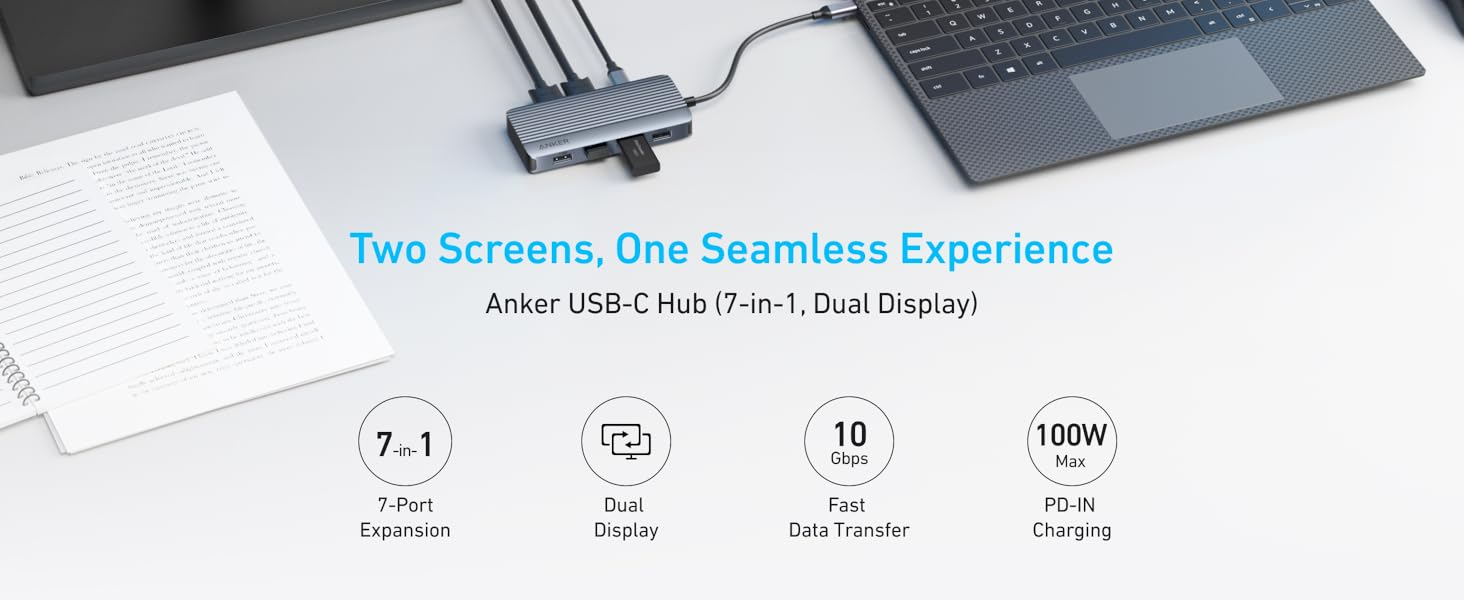
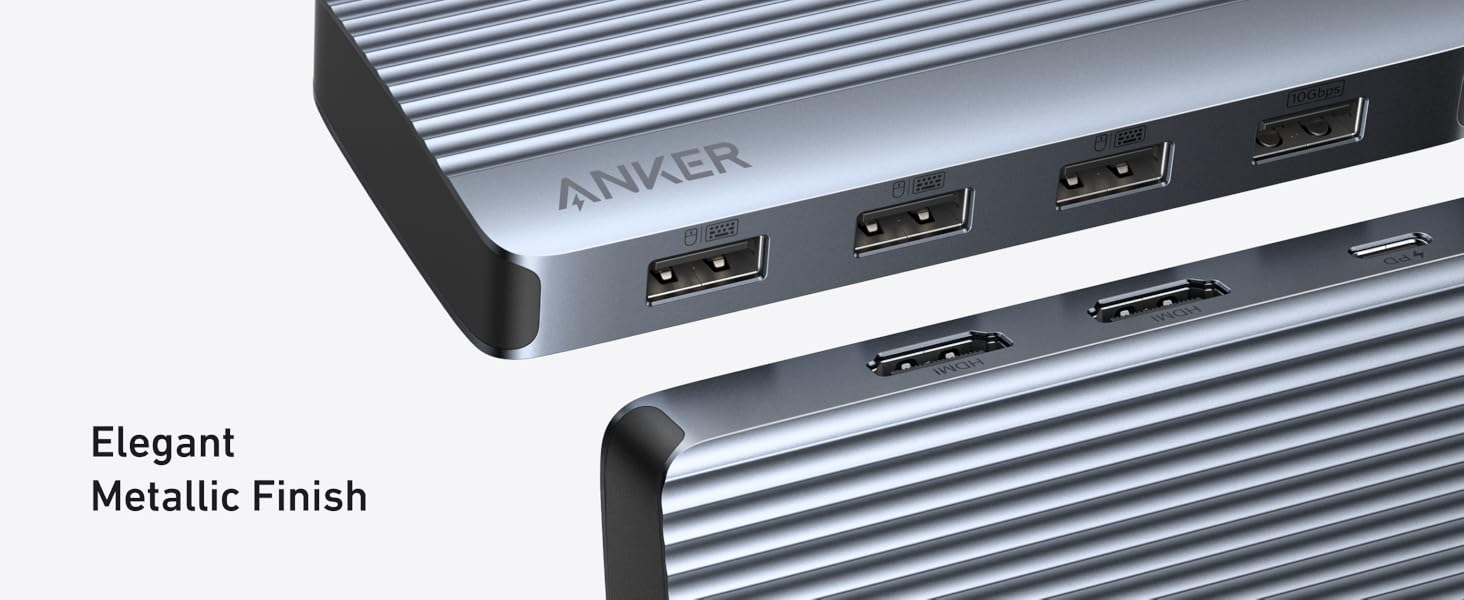
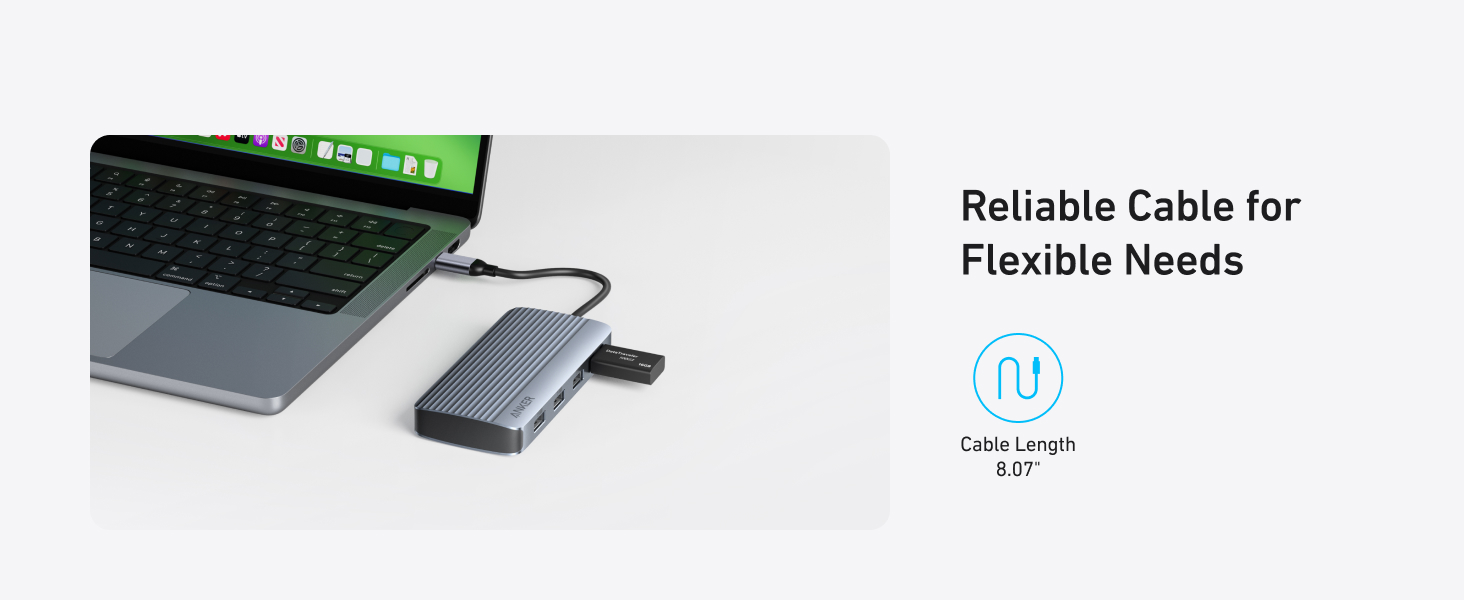
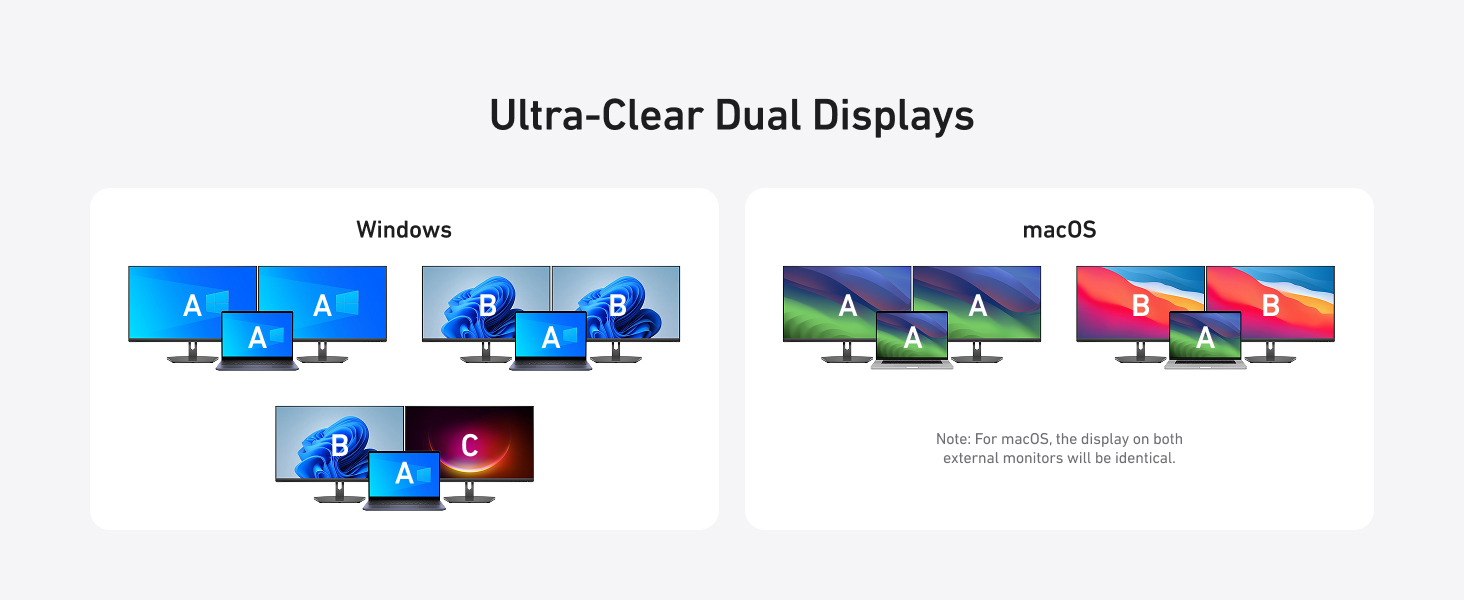
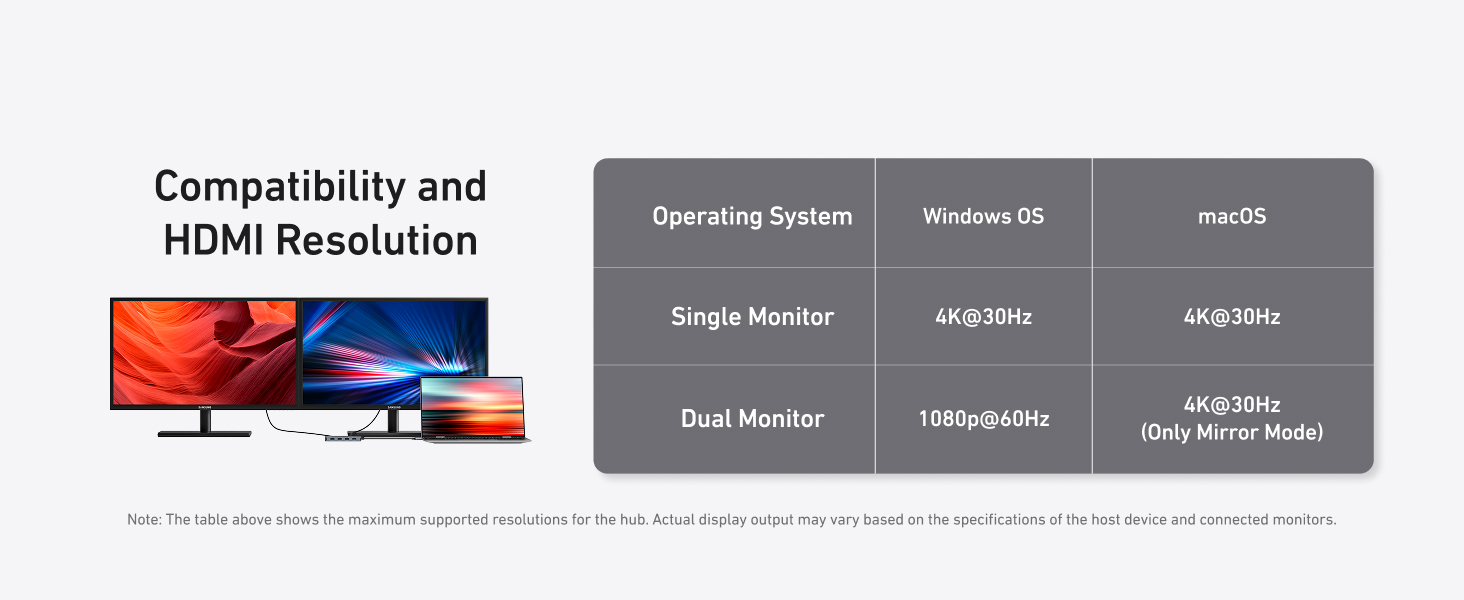
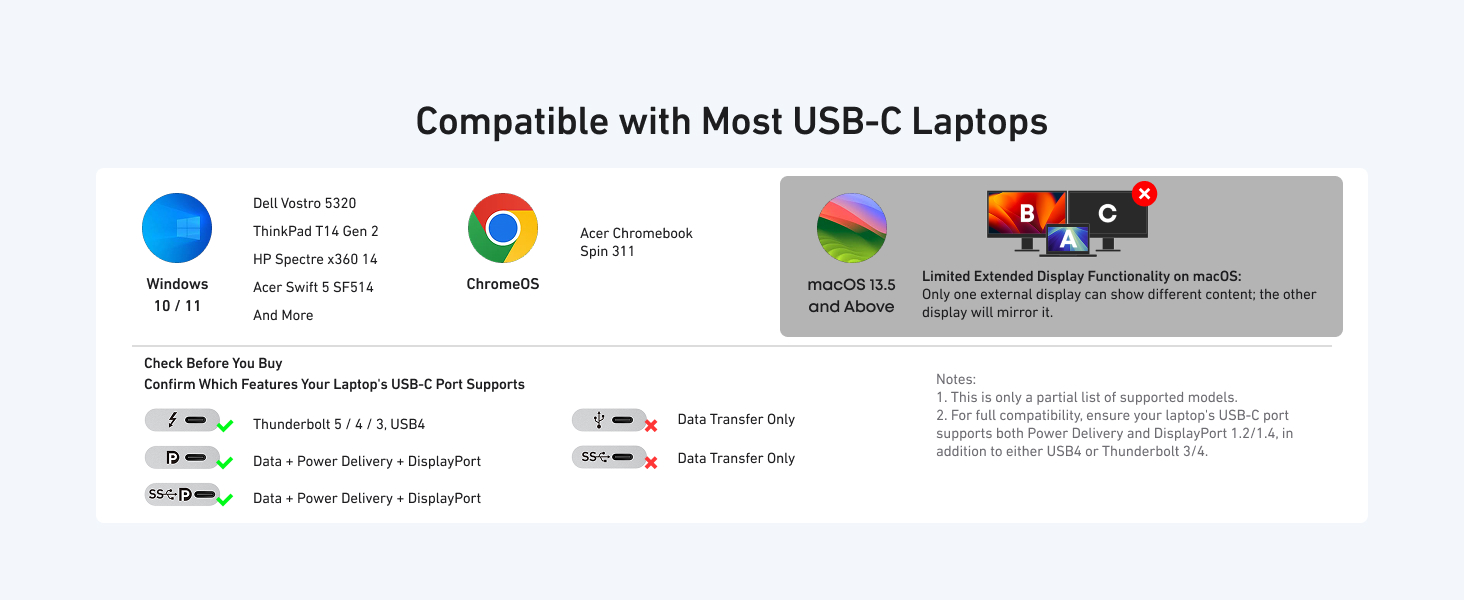
Powerful 7-in-1 Hub: Designed for the multitasker, this 7-in-1 USB-C hub features everything from ultra-fast data transfer to high-definition video output. See More, Do More: Easily extend your workspace across two screens with 1080p@60Hz resolution, ideal for enhancing productivity and multitasking capabilities. Blazing-Fast 10Gbps Data Transfer: Dramatically reduce transfer times with a 10Gbps port that quickly moves large files and boosts work productivity. 100W Fast Charging: Cut down on charging time with the powerful 100W input and 85W output, suitable for all your high-demand technology. (Note: Wall charger not included.) Compatibility: Supports USB-C, USB4, and Thunderbolt connections. Compatible with MacBook (macOS 12 and newer), Windows 10 and 11, ChromeOS, and laptops equipped with DP Alt Mode and Power Delivery. Note: This device is not compatible with Linux. What You Get: Anker USB-C Hub (7-in-1, Dual Display), welcome guide, 18-month warranty, and our friendly customer service.
- Brand: Anker
- Shipping:
Learn More

Anker USB-C Hub (7-in-1, Dual Display)
Q: Why is there a big difference in resolution between two monitors when Windows is dual-projected?
A: The discrepancy in resolution can occur if one monitor uses too much bandwidth, leaving insufficient bandwidth for the other. To balance the resolutions, you can adjust settings for each monitor:
Step 1: Reduce High-Resolution Displays
1. Go to System Settings > Display > Advanced Display. 2. Under "Select a display to view or change its settings," choose the high-resolution display (e.g., Display 2). 3. Click "Display adapter properties for [display]." 4. Select "List All Modes," choose a lower resolution like 1920x1080 at 60Hz, and apply the changes.
Step 2: Improve Low-Resolution Displays
5. Repeat the steps for the low-resolution display. 6. Under "Select a display," choose the display with lower resolution. 7. Follow the same adjustment process to increase the resolution to your desired level.